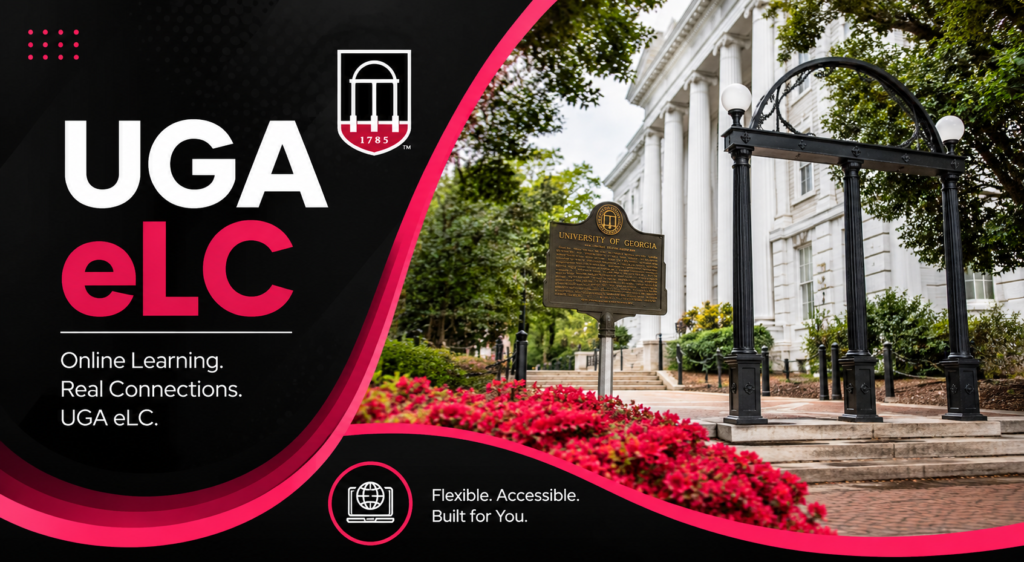

Hey there, fellow Bulldog. Ever felt that first-day-of-class panic when you cannot find the syllabus or submit an assignment before the deadline? You are not alone. Thousands of UGA students and faculty turn to the uga elc (eLearning Commons) every semester, and mastering it can turn overwhelming digital coursework into a smooth, organized experience.
This guide walks you through everything from logging in to advanced tips. Think of it as your friendly peer who has been through dozens of semesters showing you the ropes. No tech overwhelm, just practical steps that work.
What Exactly Is UGA eLC?
UGA eLC stands for eLearning Commons. It is the university’s main learning management system, powered by Brightspace by D2L. Faculty use it to post course materials, assignments, quizzes, grades, and announcements. Students access everything in one spot.
It is different from Athena (UGA’s student information system for registration and official transcripts). eLC focuses on day-to-day course interaction, while Athena handles enrollment and records. Many students use both, but they serve distinct purposes.
Managed jointly by the Center for Teaching and Learning (CTL) and EITS, eLC supports everything from fully online classes to hybrid and in-person courses with digital supplements.
How to Log Into UGA eLC: Step-by-Step Guide
Logging in is straightforward once you know the right path. Here is exactly what to do.
- Go to the right URL: Visit https://elc.uga.edu or https://uga.view.usg.edu. You can also start at my.uga.edu and click the e-Learning Commons tile.
- Enter your UGA MyID credentials: Use your MyID username and password. No separate account needed.
- Complete ArchPass Duo authentication: Expect a push notification or other two-factor prompt. This keeps things secure.
- Land on your dashboard: You will see your enrolled courses (they usually appear a few days before the semester starts).
Pro tip: Bookmark the login page and use a password manager for your MyID. If you are on a shared computer, always log out completely.
For mobile access, download the Brightspace Pulse app. It syncs calendars, announcements, grades, and content nicely for on-the-go checking.
Navigating the eLC Dashboard and Course Homepage
Once inside, the layout feels intuitive. The dashboard shows all your courses in one view. Click any course card to enter.
Inside a typical course:
- Navigation bar (usually on the left or top): Links to Content, Grades, Discussions, Assignments, Calendar, Classlist, and more.
- Content area: Most courses organize materials into modules or weekly folders with files, videos (often via Kaltura), links, and activities.
- Mini-bar and widgets: Quick access to important tools and updates.
Instructors can customize layouts, so courses vary slightly. But core tools stay consistent.
Quick navigation hack: Use the search bar at the top to find specific items across courses. And check the Calendar tool (or Pulse app) for due dates.
Key Tools Every Student and Instructor Should Master
eLC packs powerful features. Here are the most useful ones:
- Content: Your main hub for readings, lectures, and resources. Instructors upload PDFs, embed videos, or create pages.
- Assignments: Submit work, check rubrics, and view feedback. Many support file uploads and plagiarism checks.
- Quizzes: Timed or untimed assessments with various question types.
- Discussions: Threaded forums for class conversations, group work, or Q&A.
- Grades: View your progress, scores, and instructor comments. Instructors post midterms and finals here.
- Announcements: Critical updates from your professor. Turn on notifications so you never miss one.
- Groups and Classlist: Connect with classmates or see who’s in the course.
Faculty and TAs have extra tools like gradebook setup, intelligent agents for automated reminders, and third-party integrations (Turnitin, Respondus, Top Hat, etc.).
Using Brightspace Pulse for UGA on Mobile
The Brightspace Pulse app is a game-changer for busy students. It pulls in your to-do list, upcoming deadlines, unread announcements, and grades. Search for “Brightspace Pulse” in the App Store or Google Play, select University of Georgia, and log in with your MyID.
It is especially handy for checking due dates between classes or during commutes. Notifications keep you on track without opening a laptop.
Common UGA eLC Login Issues and Troubleshooting
Even the best systems have hiccups. Here are fixes for frequent problems.
- “Invalid username or password”: Double-check CAPS LOCK. Reset your MyID password at password.uga.edu if needed. Passwords expire periodically.
- Courses not showing up: Wait 24-48 hours after registration. Confirm enrollment in Athena. Contact your instructor if they remain missing.
- Stuck on loading or errors: Try incognito mode, clear browser cache for uga.edu domains, or disable extensions temporarily.
- Duo issues: Make sure your phone is charged and connected. Use a backup method if the app fails.
- Mobile app problems: Reinstall Pulse or check your device permissions.
For after-hours help, visit the official eLC support page or contact EITS.
Tips for Faculty, TAs, and Administrative Staff
If you are teaching or assisting:
- Organize content clearly with descriptive module names.
- Use release conditions to drip-feed materials.
- Leverage rubrics for consistent grading.
- Post syllabi early in the Content area or as an announcement.
- Export grades to Athena at semester end.
CTL offers workshops and one-on-one help. Check their site for training sessions.
Advanced Features and Best Practices
Make the most of eLC with these ideas:
- Set up notifications for immediate updates on new content or grades.
- Use the Calendar alongside Pulse for a complete view of deadlines.
- For accessibility, tools like Ally help ensure materials work for everyone.
- Back up important submissions just in case.
Many students create a weekly routine: check eLC every morning, review the syllabus, and tackle one module at a time. This beats last-minute cramming.
eLC Support and Resources at UGA
You have solid backup options:
- Official help site: help.elc.uga.edu
- EITS Help Desk: 706-542-3106 or helpdesk@uga.edu
- CTL support for pedagogical questions
- Unit-level support in your college or school
Check the eLC System Status page before assuming an outage.
Next Steps Checklist:
- Bookmark elc.uga.edu and the help site.
- Download Brightspace Pulse and set notifications.
- Review your course syllabi this week.
- Reach out to your instructor early if something is unclear.
What is one change you will make today to feel more in control of your courses? Small habits add up fast in a busy semester.
FAQs
How do I log into UGA eLC?
Go to elc.uga.edu or uga.view.usg.edu, enter your MyID and password, and complete Duo authentication.
What is the difference between eLC and Athena?
eLC handles course materials, assignments, and discussions. Athena manages registration, transcripts, and official records.
Why are my courses not appearing in eLC?
They usually sync a few days before the semester. Check Athena for enrollment and wait 24-48 hours.
Can I use eLC on my phone?
Yes. The Brightspace Pulse app provides great mobile access to calendars, grades, and content.
Who do I contact for UGA eLC help?
Start with help.elc.uga.edu. For urgent issues, call EITS Help Desk or use the student support form.
Is eLC the same as Brightspace?
Yes. UGA’s version is called eLearning Commons and runs on the Brightspace platform by D2L.
What should I do if I forget my MyID password?
Reset it at password.uga.edu. Then log in normally with Duo.